


Published 2025/12/01
1. Click on the App Launcher (9 dots) on the top-left corner. #
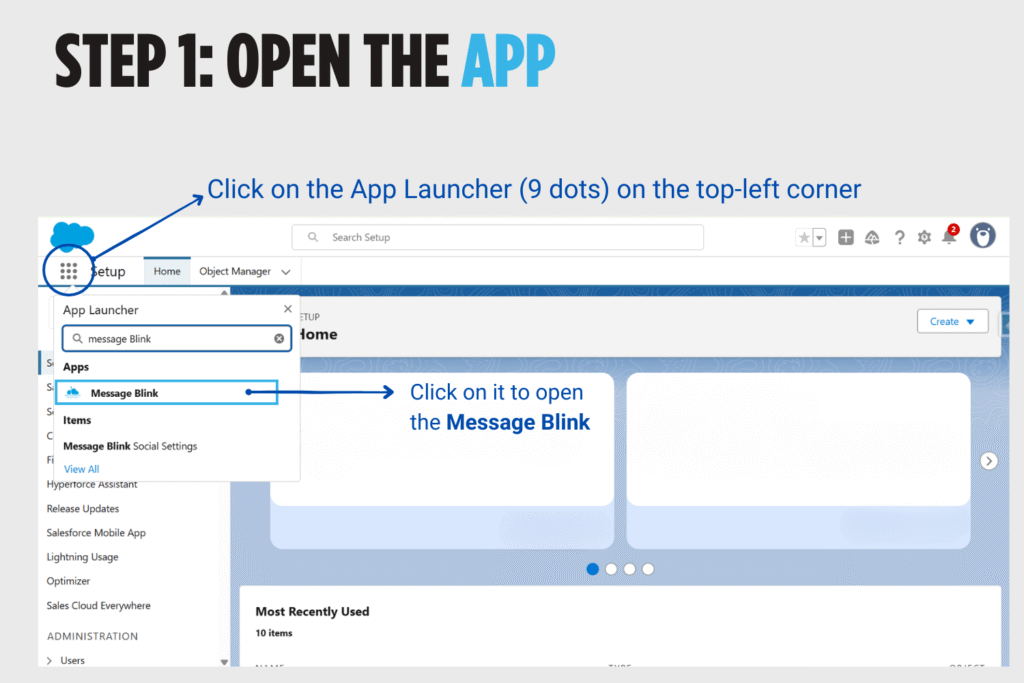
2. Click on it to open the Message Blink. #

3. Choose your Country. #

4. A test phone number will be assigned. #

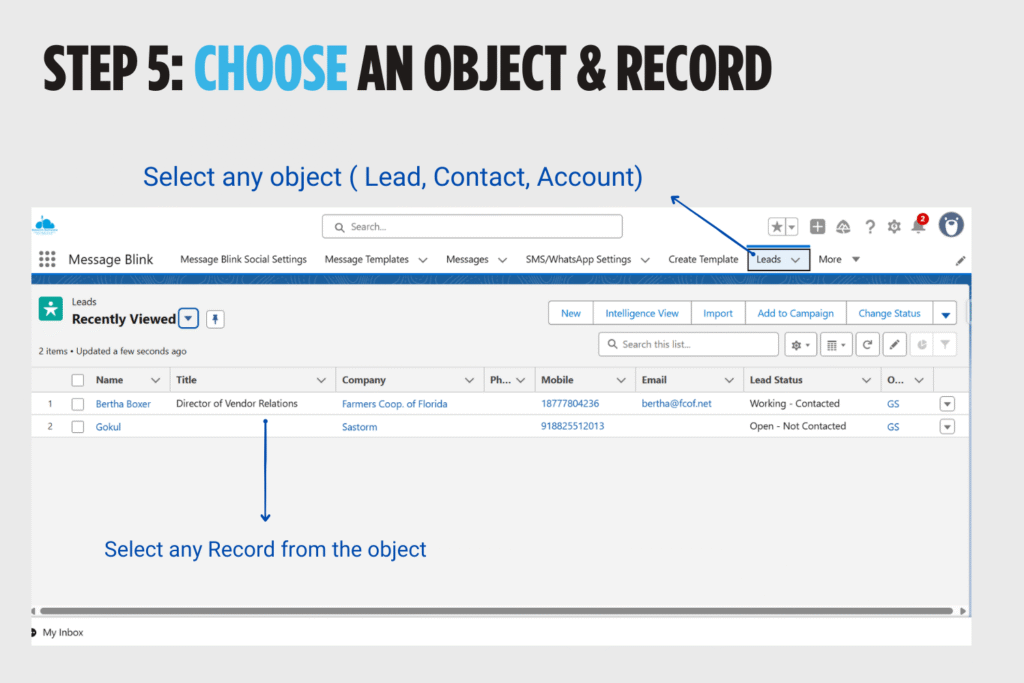
5. Select any Salesforce object ( Lead, Contact, Account). Then Select any record from that object. #
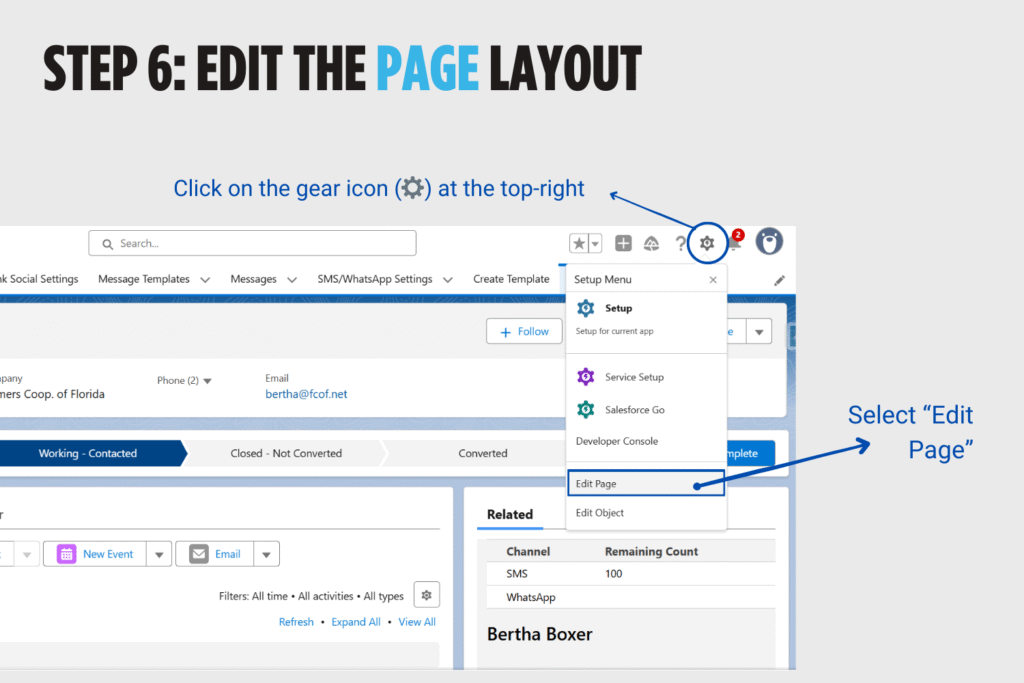
6. Click on the gear icon (⚙️) at the top-right then Select “Edit Page” #
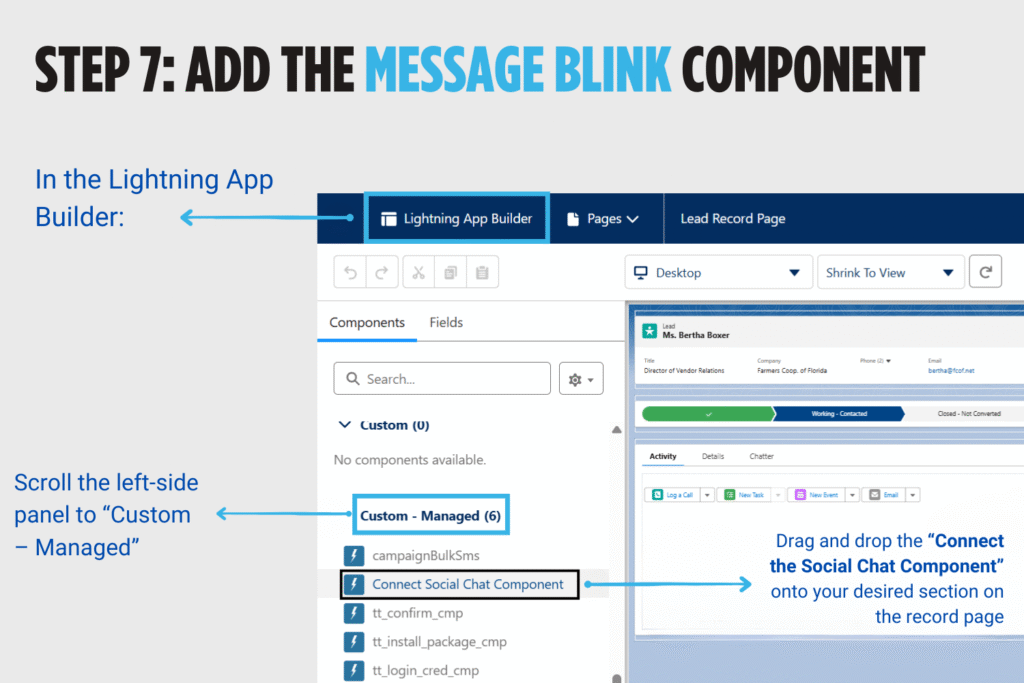
7. Add the Message Blink Chat Component into your desired section on the record page. #
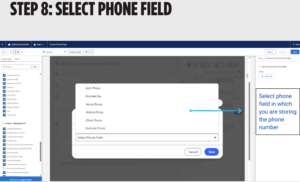
8. Select Phone Field. #
9. Click on Activate button. #
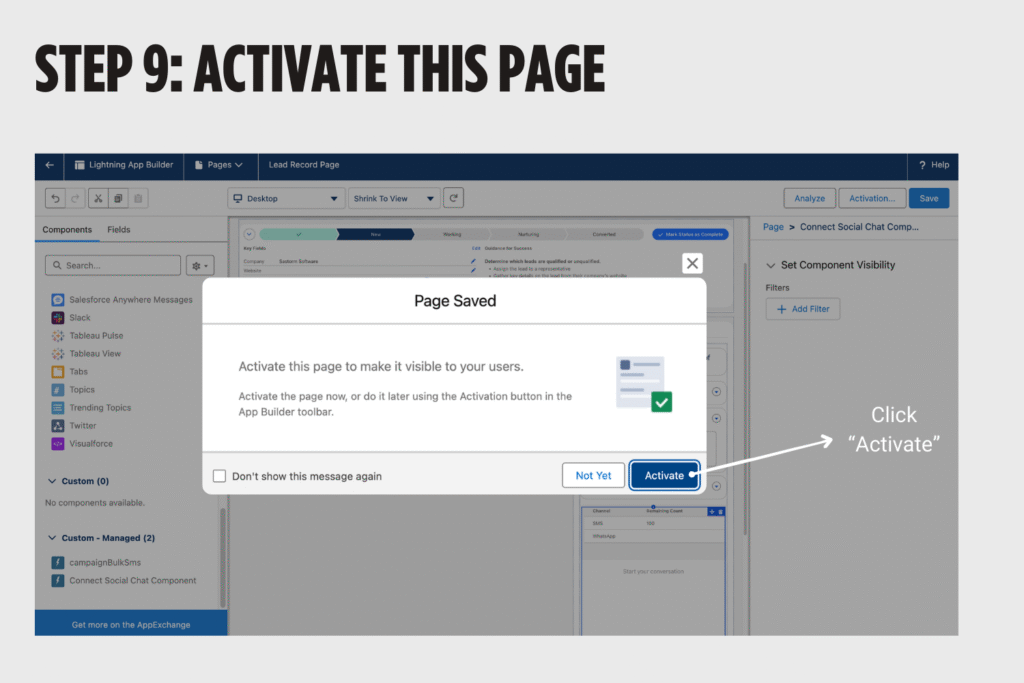
10. Now click on Activation Button. #

11.Choose “Set as Org Default”. #

12. Select “Form Factors” #

13. Review “Assignments” and Click on “Save” #

14. Click Save #

15. Return to the Record View. #

16. Refresh it and now you can see the Message Blink Chat Component on the record page. #


