 UK +44 (734) 008 7301
 USA +1 (737) 395 8587

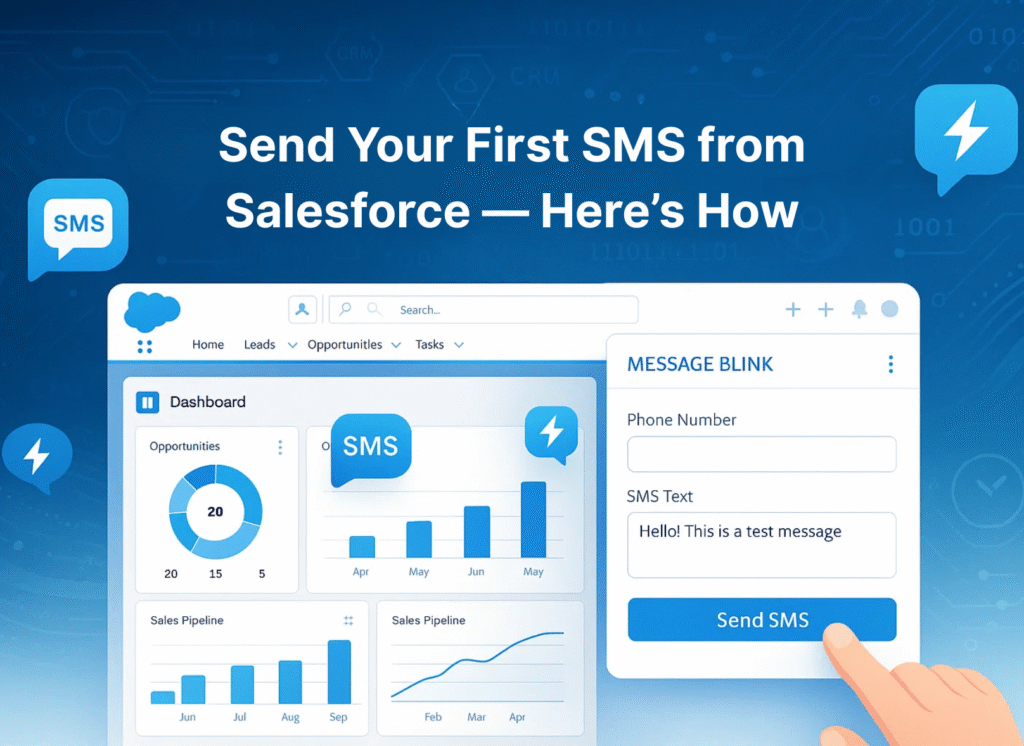
Salesforce SMS is a CRM integration that allows users to send and receive text messages directly from records like Leads and Contacts. Using a 100% native app like Message Blink, businesses can automate bulk SMS via Salesforce Flow, track two-way conversations, and ensure TCPA/10DLC compliance without leaving the Salesforce interface.
Message Blink, built by Ex-Salesforce ISV Partner Account Manager is a 100% Salesforce native SMS app that enables these Salesforce SMS capabilities inside your existing org, without relying on an external tool or separate database.
Salesforce SMS Use Cases with Message Blink
-
Send one‑to‑one SMS directly from Lead, Contact, Account, Opportunity, and Case records using Message Blink components on the page layout.
-
Run bulk Salesforce SMS campaigns from Campaigns and report results to reach thousands of recipients with a few clicks.
-
Use list view SMS to contact selected Leads or Contacts without exporting data or leaving Salesforce.
-
Automate SMS with Salesforce Flow for events such as new leads, opportunity stage changes, upcoming appointment reminders, and case updates.
-
Track replies and conversation history on the related Salesforce records so sales, service, and marketing teams always see the full communication timeline.
Step 1: How do I install an SMS app in Salesforce?
-
Visit the AppExchange Listing:
- Go to the Salesforce AppExchange and search for “Message Blink” or check this installation video.
- Click the “Get It Now” button on the Message Blink AppExchange listing page.
-
Log in to Salesforce:
- Login in with your Salesforce credentials to access the environment (sandbox or production) where you want to install Message Blink.
-
Choose Installation Options:
- Select whether to install for all users or specific profiles based on your organization’s needs.
- Review and confirm the installation settings as prompted by Salesforce.
- Accept the terms and conditions, then click Install.
-
Wait for Installation:
- The installation process typically takes a few minutes. Message Blink is a native Salesforce app, so no external API connectors or complex developer setup are required.
Step 2: Configure Message Blink in Salesforce
-
Access Message Blink Settings:
- After installation, navigate to the App Launcher in Salesforce and select the Message Blink app or tab.
- Alternatively, go to Setup > Apps > Installed Packages make sure Message Blink Installed.
-
Set Up Permissions Sets:
- Make sure these Permission Sets are Assigned to users.
- Assign permissions to users who will send or manage SMS messages.
-
Configure Phone Number Fields:
- Ensure that contact, lead, or custom object records in Salesforce have a field for mobile numbers (e.g., MobilePhone or a custom field like SMS_Phone__c)
- Check out this Post Installation Guide Video.
Step 3: Set Up SMS Messaging Features
-
Create SMS Templates:
- Navigate to Message Templates > SMS Templates in Salesforce.
- Create templates for common use cases like appointment reminders, order confirmations, or promotional messages.
- Use dynamic fields for personalization (e.g., “Hello [FirstName], your order #[OrderID] is confirmed”). Message Blink supports merge fields to pull data from Salesforce records.
- Preview the message template.
-
Set Up Messaging Triggers:
- Use Salesforce Flows to automate SMS sending based on triggers like lead updates, order confirmations, or case status changes.
- Use Action named “Send SMS” in Flows to send SMS.
- Watch how to automate SMS with Salesforce Flow using Message Blink.
-
Enable Bulk SMS Campaigns:
- In Message Blink, go to the bulk messaging tab or component (accessible from Leads, Contacts, or Campaigns).
- Select your audience using a Salesforce report, campaign member list, or manual selection of records.
- Choose a template, schedule the message, or send immediately.
- Check out the Bulk SMS Guide to send SMS from List Views, Reports and Campaigns.
-
Set Up Two-Way Messaging:
- Configure Message Blink to handle incoming SMS replies, which are logged directly in Salesforce under the relevant contact or lead record.
- Set up automated responses for specific keywords (e.g., replying to “HELP” with support information).
Step 4: How to manage 10DLC and TCPA compliance for Salesforce SMS?
See the full Salesforce SMS compliance guide.
-
Collect Opt-In Consent:
- Use Message Blink to automate keyword-based opt-ins (e.g., “Text START to 12345”).
- Add an SMS opt-in checkbox to web forms or landing pages linked to Salesforce, ensuring clear language like: “I agree to receive SMS updates from [Company Name]. Text STOP to unsubscribe.”
- Store opt-in consent in a custom field like SMS_OptIn__c for compliance tracking.
-
Manage Opt-Outs:
- Configure Message Blink to recognize opt-out keywords like “STOP” and mark contacts as unsubscribed.
- Log opt-out timestamps in a custom object for compliance audits to adhere to regulations like TCPA and CTIA.
- For more detail, see your Salesforce SMS TCPA guide 2025.
-
Include Compliance Messaging:
- Ensure every SMS includes opt-out instructions (e.g., “Reply STOP to unsubscribe”).
- Use Message Blink’s templates to standardize compliance messaging across campaigns.
Step 5: Test and Monitor SMS Campaigns
-
Send Test Messages:
- Before launching a campaign, send test SMS messages to a small group of internal users to verify template formatting, personalization, and delivery.
-
Track Performance:
- Use Message Blink’s analytics and reports in Salesforce to monitor delivery rates, open rates, response times, and engagement metrics.
- Access reports in Salesforce to analyze campaign performance and refine messaging strategies.
-
Adjust as Needed:
- Based on analytics, tweak templates, timing, or audience segmentation to improve engagement and ROI.
Step 6: Scale and Automate
-
Integrate with Other Channels:
- Message Blink supports WhatsApp. Configure these integrations if needed for omnichannel communication.
-
Automate Workflows:
- Set up automated workflows for follow-ups, reminders, or lead nurturing using Message Blink’s Actions
- Example: Automate an SMS follow-up 5 minutes after a missed call or web form submission.
-
Collaborate with Teams:
- Use Message Blink’s shared team inbox to manage SMS replies collaboratively, ensuring all interactions are logged in Salesforce for a 360-degree view of customer communication.
Ensuring 2026 SMS Compliance (US 10DLC & TCPA)
-
A2P 10DLC Registration: Message Blink simplifies the Brand and Campaign registration required by US carriers.
-
The “One-to-One Consent” Rule: In 2026, you must have explicit consent for each specific seller. Store this timestamp in your
SMS_OptIn__cfield. -
Automated Opt-Out (STOP): Our system natively recognizes “STOP,” “QUIT,” and “UNSUBSCRIBE.” It instantly updates the opt-out status to prevent accidental non-compliance.
Additional Tips
- Start Small: Begin with a single use case (e.g., appointment reminders) to test Message Blink’s functionality before scaling to bulk campaigns.
- Leverage Support: Message Blink offers customer support and documentation. Contact their team (e.g., via [email protected]) for assistance during setup or review the Message Blink FAQ.
- Stay Updated: Check Message Blink’s AppExchange listing or website for updates on new features or compliance requirement
Native vs. Non-Native Salesforce SMS Apps
| Feature | Message Blink (Native) | Non-Native Apps (Twilio/API) |
| Data Storage | 100% Inside Salesforce | External Cloud Servers |
| Security | Salesforce Shield Compatible | Requires API Data Export |
| Automation | Native Salesforce Flows | External Webhooks/Triggers |
| User Setup | Under 15 Minutes | Complex API Mapping |