


 ChatGPT
 Perplexity
 Claude
 Google AI
Salesforce Utility Bar: Complete Guide to Setup, Use Cases and Best Practices
Wouldn’t it be nice if your Salesforce users could click a button and get to their phone dialer, notes, or recent records without leaving the page they’re on? The salesforce utility bar is the answer. This is one of the most underutilized productivity tools in Lightning Experience. Once set up properly, it can drastically cut down the number of clicks your team makes day to day.
We’ll go over what the utility bar is, how to configure it, the best use cases, the limitations, and how it fits into a bigger Salesforce productivity stack in this guide.
What is the Salesforce Utility Bar?
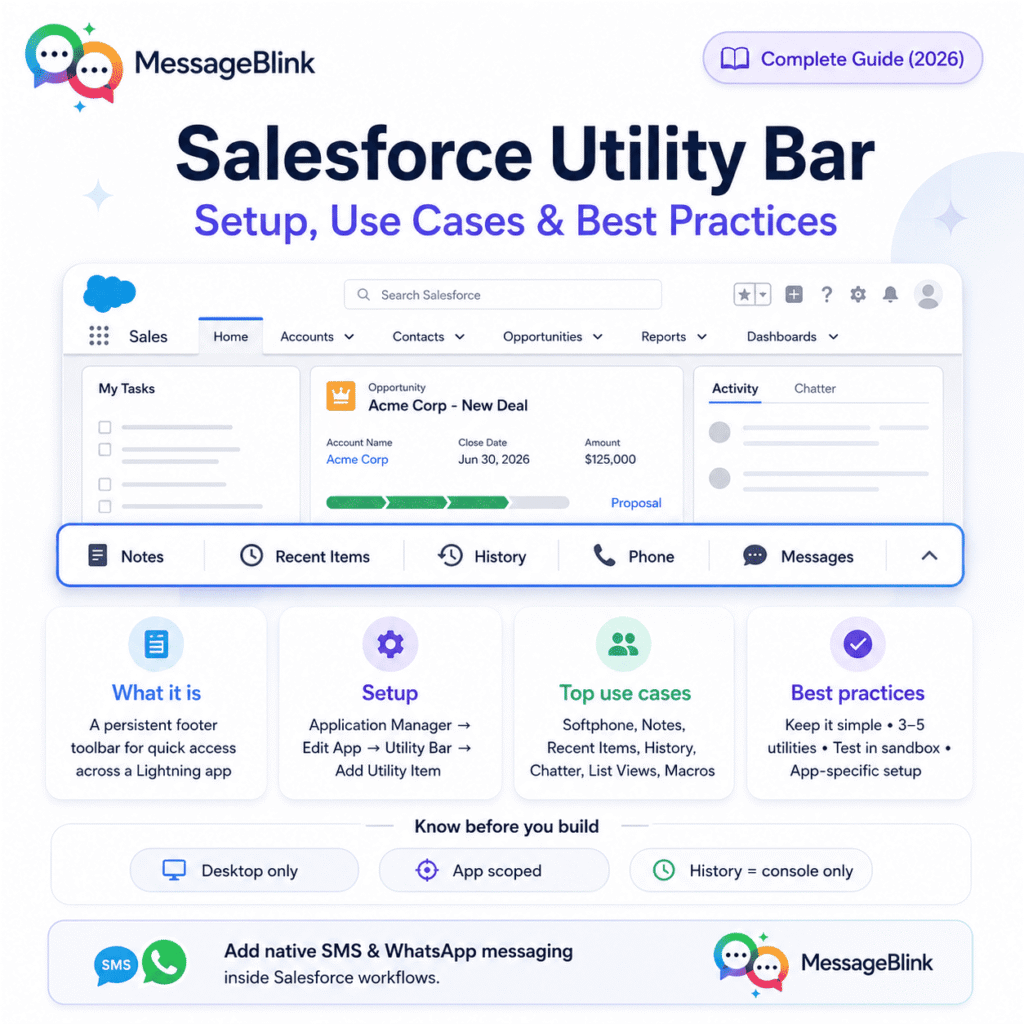
The salesforce utility bar is a fixed footer at the bottom of a Lightning app that gives you single-click access to tools like Notes, Recent Items, History, and Open CTI softphones. While a component added to a single record page is only available on that page, the utility bar is available on every page in that app. That means wherever a user goes, the same toolbar and its utilities are available for them.
It’s like a taskbar for Salesforce: always on, always there, and designed to play host to the tools your team uses all of the time rather than just some of the time.
Utilities themselves are Lightning components, so you can include standard Salesforce components (such as Recent Items or Chatter) or custom Lightning Web Components built for the specific workflows in your org.
How to Create a Salesforce Utility Bar
Creating a utility bar takes just a few clicks:
- Setup → Application Manager
- Locate the Lightning app that you want to edit, then click “Edit.”
- Choose “Utility Bar” from the menu on the left
- Click Add Utility Item and select a standard or custom Lightning component
- Set properties for each utility (icon, label, panel width/height, does it support pop-out)
- Save and Enable
One important detail that admins often overlook is that the utility bar is configured per Lightning app, not per user or profile. If your org has multiple apps (Sales, Service, a custom console, etc.), you will need to configure the utility bar for each app separately. Or, if you care more about consistency than customization, you can stick with a single app.
Use Cases for Top Salesforce Utility Bars
Here’s a list of the most common Salesforce utility bar added by admins, based on real-world configurations:
| Utility Item | What It Does |
|---|---|
| Open CTI Softphone | Integrates a VoIP dialer (e.g. Vonage, Amazon Connect) for click-to-call and inbound call handling |
| Notes | Enables reps to quickly take notes tied to any record, from any page |
| Recent Items | Shows recently viewed records for a selected object |
| History | Allows users to retrace their navigation path (Lightning console apps only) |
| Chatter Feed | See collaboration and updates without leaving the current screen |
| List Views | Pins a saved list view (e.g., “My Open Cases”) for one-click access |
| Macros | Speeds up repetitive tasks in Service Cloud console |
It’s also good to know that native messaging tools can be surfaced the same way for teams running outbound SMS or WhatsApp campaigns from Salesforce—more on that below.
Utility Bar versus Other Salesforce Navigation Tools
The utility bar is frequently mistaken for other “quick access” features by admins. Here’s how they’re different:
| Feature | Utility Bar | Global Actions | App Launcher |
|---|---|---|---|
| Always present across pages | ✔ | ✔ | ✗ |
| Specific app scope | ✔ | ✗ | ✗ |
| Supports Visualforce page | ✗ | ✗ | N/A |
| Supports custom LWCs? | ✔ | Limited | ✗ |
| Mobile-friendly | ✗ | ✔ | ✔ |
| Best for | Persistent tools & panels | Fast record entry | Changing apps |
What You Should Know Before Building
A couple of limitations that get caught by admins building their first utility bar:
- Desktop only. Salesforce’s own docs confirm utility bars are only supported in Lightning Experience for desktop, not mobile. So don’t build mobile workflows around it.
- Visualforce not supported. But if you’re still on legacy VF pages in your org, you’ll need to rebuild that capability first as a Lightning component.
- Chatter Publisher/Feed is not available in the utility bar.
- App scoped, not user scoped. Utility bar tweaks aren’t typically required—custom components or Flows are usually required for one-off requests from individual users.
- History utility is console-only. It doesn’t work the same in non-console Lightning apps.
- Utility bars built with the Lightning App Builder or App Wizard are associated with one app. Utility bars built through the Metadata API can be used in multiple apps.
Best Practices for Setting Up Utility Bar
- Begin small. Instead of cramming everything available in, add 3-5 high-value utilities. A cluttered utility bar defeats its own purpose.
- Prototype in a sandbox before rolling out to production, and get a few end users to test the real workflow.
- Background utility items are for components that need to run (e.g., a notification listener) without occupying visible space in the bar.
- Tailor the utility bar contents to the app’s function. If it looks the same, then you don’t have a service console.
- Monitor use over time. Utilities nobody clicks are just visual noise—audit and prune every couple quarters.
If your team uses the utility bar to manage customer conversations—call notes, case follow-ups, and appointment reminders—consider adding two-way SMS and WhatsApp messaging that lives natively inside the same Salesforce record. MessageBlink embeds Salesforce native texting directly into your workflow. Reps can send a follow-up text from within the same screen they’re already in, with every message automatically logged to the record. It’s all built on the Salesforce platform, so there’s no separate login or outside dashboard to manage. [See MessageBlink on AppExchange →]
What’s New
Salesforce is pushing more configuration options into the Lightning App Builder’s App Settings tab, where branding, navigation, and utility bar setup now sit side by side—making it easier to manage an app’s full look and feel from one place instead of bouncing between separate setup pages. The Agentforce setup is also beginning to surface recommendations for Lightning page configuration, but the utility bar setup itself is still a manual click-through.