


 ChatGPT
 Perplexity
 Claude
 Google AI
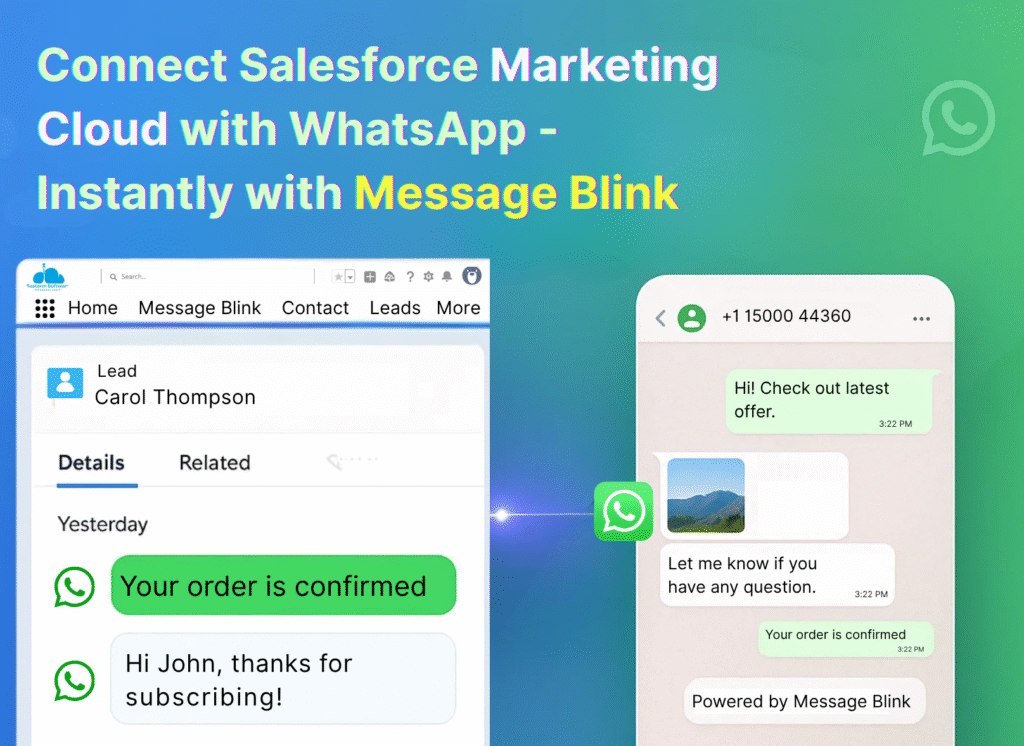
The Salesforce Marketing Cloud WhatsApp integration has transformed how businesses connect with customers through real-time, personalized engagement. When enhanced by Message Blink, this integration empowers marketers and CRM managers to automate WhatsApp campaigns, boost engagement, and deliver measurable marketing performance – all inside Salesforce.
The Role of Message Blink in WhatsApp Integration
Message Blink built by Ex- Salesforce ISV PAM acts as the bridge between WhatsApp Business API and Salesforce Marketing Cloud. They are Meta Tech Providers. It simplifies technical setup, automates two-way conversations, and gives marketing teams granular control over how WhatsApp fits into Salesforce campaigns.
Here’s what makes Message Blink helps Salesforce marketers:
- 100% Native to Salesforce: Message Blink integrates directly with Campaigns, Journey Builder, and Contact Builder. You can send personalized WhatsApp messages as part of automated journeys without leaving Salesforce.
- Two-Way Messaging: Respond to customer messages, confirm orders, and manage marketing responses in real time.
- Template and Session Messaging: Send pre-approved notifications like payment receipts, reminders, or cart recovery prompts (template messages), and continue customer-initiated sessions (session messages) directly from Marketing Cloud.
- Unified Data Sync: Message Blink automatically syncs opt-in data, contact records, and engagement metrics into Salesforce – ensuring compliance and accuracy across your campaigns.
Prerequisites for Integration
Before you begin, ensure you have the following ready:
- Salesforce Marketing Cloud Account (Enterprise, Unlimited, or Developer Edition).
- Admin Access to install apps and configure integrations.
- Verified WhatsApp Business Account (WABA) approved through Meta Business Manager.
- Message Blink license or trial access from Salesforce AppExchange.
- WhatsApp Business API credentials from your BSP (e.g., Twilio, Vonage, or Telnyx).
Step 1: Install Message Blink from AppExchange
- Log in to your Salesforce org as an Admin.
- Visit AppExchange and search for Message Blink.
- Select Get It Now → Choose your environment (Production/Sandbox).
- Grant permissions for Contacts, Leads, and Cases.
- Confirm that Message Blink appears under the App Launcher (9-dot menu).
This installation adds the Message Blink Console, Live Inbox, and WhatsApp message components to Marketing Cloud.
Step 2: Activate Your Message Blink Trial or License
- Open Message Blink from the App Launcher.
- Start your 30-day free trial (includes 100 test credits).
- Register your business details for WhatsApp Business account onboarding.
- Assign or verify your WhatsApp Business phone number through Meta.
- Message Blink team will guide you through WABA onboarding, ensuring compliance with Meta’s guidelines.
Step 3: Configure WhatsApp Business API in Salesforce
- Log into the Message Blink Admin Console.
- Under Channel Settings → WhatsApp, enter your WhatsApp Business API credentials.
- Message Blink automatically configures a Webhook to receive incoming WhatsApp messages.
- Copy and verify the webhook URL within your WhatsApp Business API → Settings in Meta.
- Send a test message to confirm that communication between Salesforce and WhatsApp works correctly.
Step 4: Create and Approve WhatsApp Message Templates
- In Message Blink → Templates, create transactional or promotional message drafts.
- Example: “Order confirmed!” or “Appointment Reminder.”
- Add dynamic merge fields (e.g., First Name, Order ID).
- Submit templates for Meta approval — required for outbound messaging.
- After approval, you can send templates.
Step 5: Automate WhatsApp Messaging via Flows and Triggers
- Use Salesforce Flow or Process Builder to trigger WhatsApp messages when:
- A Lead is created.
- Case status changes.
- Opportunity reaches “Closed Won.”
- Configure the action “Send WhatsApp Message” from Message Blink’s toolbox.
- Enable bulk or one-to-one messaging via reports, campaign lists, or automation rules.
Step 6 : Analyze and Optimize
- In Message Blink Analytics, monitor:
- Message Sent, Delivered, and Read rates.
- Campaign performance per Journey.
- User engagement and click-through rates.