

 ChatGPT
 Perplexity
 Claude
 Google AI
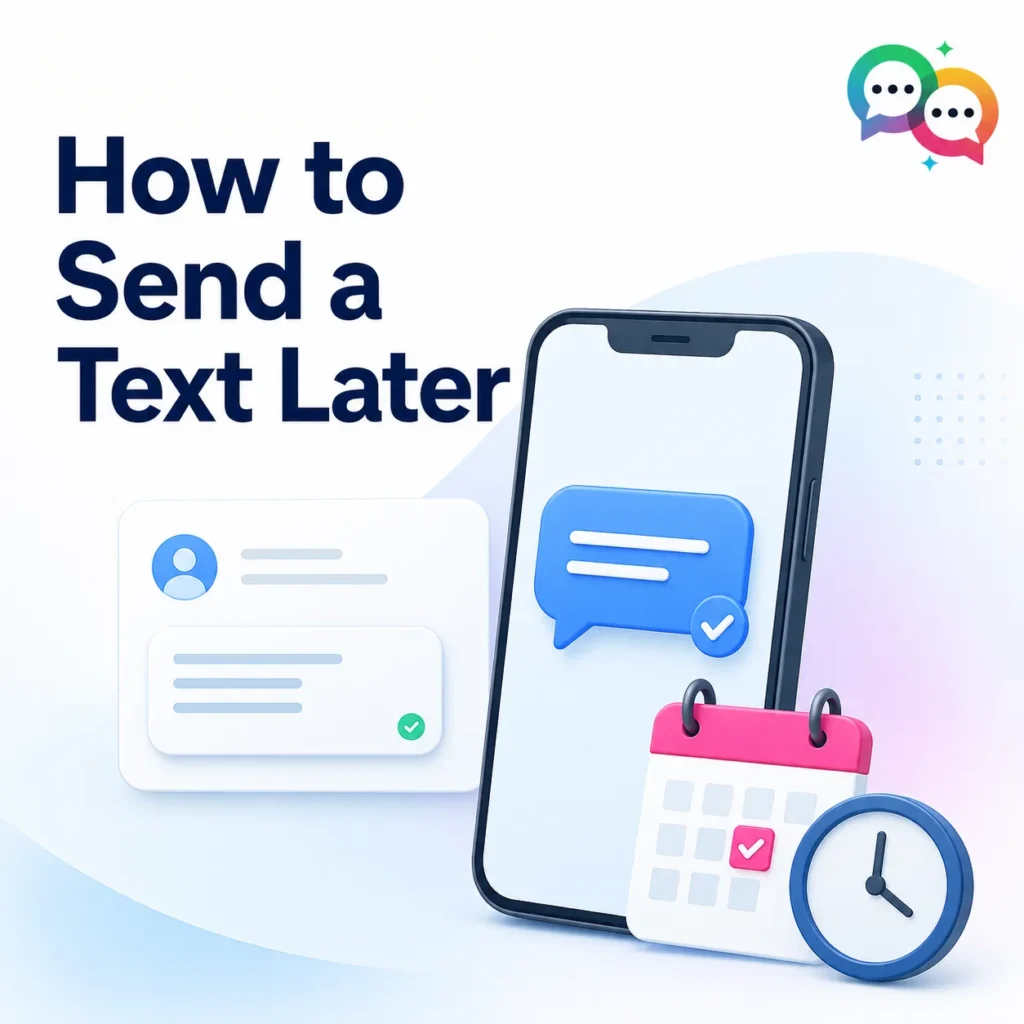
How to Send a Text Later: A Complete Guide for Personal and Business Messaging
Ever typed out a birthday message at midnight, only to catch yourself before hitting send because it’s 3 AM and nobody wants a text that early? Or maybe you’ve watched a company text you at exactly 10:00 AM with a “flash sale ends today” message and wondered how they timed it so precisely. Both situations come down to the same skill: scheduling a text to send later instead of the moment you write it.
Sending a text later isn’t one single feature—it relies on your phone, your messaging app, and whether you’re sending one message to a friend or thousands to customers. This guide walks through every method that actually works in 2026, starting with the built-in options on your phone, moving into third-party apps, and finishing with how businesses schedule SMS and WhatsApp campaigns at scale without manually hitting send at the right moment.
Why People Schedule Texts in the First Place
Before getting into the “how,” it helps to understand the “why,” since the right method depends on your reason:
- Time zone courtesy — writing a message at 11 PM your time but wanting it to land at 9 AM for the recipient
- Remembering important dates — birthdays, anniversaries, follow-ups you don’t want to forget
- Working ahead — drafting messages during downtime and having them go out later, without needing to remember to send them manually
- Business timing — sending appointment reminders, order updates, or promotions at the moment they’re most likely to be read, often to hundreds or thousands of recipients at once
The tools differ significantly depending on which of these you’re solving for, so let’s go method by method.
How to Schedule a Text on iPhone (iOS)
Apple added native message scheduling to iOS with the Shortcuts app, since the Messages app itself still doesn’t have a built-in “send later” button as of iOS 26. Here’s the workaround that most iPhone users rely on:
- Open the Shortcuts app on your iPhone.
- Tap the + icon to create a new shortcut.
- Add the “Send Message” action, and enter the recipient and message text.
- Add a “Wait” action set to however many hours or minutes you want to delay, or use the “Date” action combined with an automation trigger.
- Go to the Automation tab, tap +, choose “Time of Day,” and set it to run your shortcut at your chosen time.
- Turn off “Ask Before Running” if you want it to send automatically without a confirmation tap.
This works reliably for one-off personal messages, though it’s clunky if you’re trying to schedule dozens of texts regularly—Shortcuts wasn’t built for volume messaging, and this is how to send a text later in iPhone.
How to Schedule a Text on Android
Android’s approach depends on which messaging app you’re using, since manufacturers customize this differently across Samsung, Google, and other devices:
- Google Messages (the default on most Android phones and Pixel devices) has scheduling built directly into the app. Open a conversation, type your message, then long-press the send arrow instead of tapping it. A menu pops up letting you pick a date and time.
- Samsung Messages offers a similar long-press-to-schedule option on newer One UI versions.
- If your default app doesn’t support scheduling, third-party apps like Textra or Pulse SMS add the feature reliably.
Android’s native scheduling is generally more built-in and less clunky than iPhone’s Shortcuts workaround, which is one of the more common Android-vs.-iPhone messaging debates, and this is how to send a text later in Android.
How to Schedule a WhatsApp Message
WhatsApp still doesn’t offer native scheduling as of 2026 — a gap that surprises a lot of users given how widely it’s used for both personal and business communication. To schedule a WhatsApp message, you have two realistic options:
- iOS/Android Shortcuts and automation apps — similar to the iPhone SMS method above, though WhatsApp’s automation support is more limited than SMS.
- WhatsApp Business API tools—for businesses sending WhatsApp messages to customers rather than individual friends, dedicated messaging platforms connect to the WhatsApp Business API and handle scheduling, templates, and delivery tracking properly. This is the only reliable way to schedule WhatsApp messages at any real volume.
Scheduling Texts for Business: Why the Personal Methods Don’t Scale
Everything above works fine if you’re sending one message to one person. It falls apart fast if you’re a business trying to
- Send appointment reminders to 200 patients the morning before their visit
- Follow up with every donor who hasn’t renewed in 60 days
- Trigger a “your order has shipped” text automatically the moment a status changes
- Run a scheduled SMS and WhatsApp promotion to a segmented list of thousands of contacts
Manually scheduling each of those through a phone’s Shortcuts app or long-press menu isn’t just tedious — it’s not something a phone’s messaging app is designed to handle. Businesses need a platform that can queue messages against a contact list, respect opt-out and compliance rules like TCPA and A2P 10DLC registration, track delivery, and trigger sends based on events (like a CRM record changing) rather than a fixed time you set manually.
This is where dedicated business messaging tools come in — and for teams already running their operations in Salesforce, the most efficient setup is one that schedules and sends texts directly from inside the CRM, rather than exporting contact lists to a separate app.
How Scheduled Messaging Works Inside Salesforce
For Salesforce users specifically, native SMS and WhatsApp scheduling tools like MessageBlink let you queue messages directly against your existing leads, contacts, or campaign records—no CSV exports, no separate login. You can schedule a message to go out at a specific time or set it to trigger automatically based on a Salesforce field or workflow event, like a case being closed or a donation lapsing. Because it works natively on the Salesforce platform, delivery status, replies, and opt-outs sync straight back to the record, so your team isn’t checking two systems to know whether a scheduled text actually landed, and this is how to send a text later with messageblink.
Comparing Your Options
| Method | Best For | Volume | Automation Trigger | Cost |
|---|---|---|---|---|
| iPhone Shortcuts | One-off personal texts | Low (1 at a time) | ✔ Time-based only | Free |
| Google Messages long-press | Quick personal scheduling | Low (1 at a time) | ✔ Time-based only | Free |
| Third-party SMS apps (Textra, Pulse) | Frequent personal scheduling | Low–Medium | ✔ Time-based only | Free–Low |
| WhatsApp (manual) | Personal WhatsApp reminders | Low | ✗ No native scheduling | Free |
| MessageBlink (Salesforce-native) | Business SMS + WhatsApp campaigns | High (bulk & segmented) | ✔ Time-based + event-based (CRM triggers) | Paid |
In Summary
For a single reminder to a friend, your phone’s built-in tools (or a quick Shortcuts setup on iPhone) will cover it. But once you’re sending on behalf of a business—reminders, follow-ups, or campaigns to real customer lists—you need scheduling that’s tied to your actual data, not a manual calendar reminder to hit send. That’s the gap platforms like MessageBlink are built to close for Salesforce teams running SMS and WhatsApp outreach.