

 ChatGPT
 Perplexity
 Claude
 Google AI
How to Send a GIF Text Message: A Full Step-by-Step Guide to Personal and Business Messaging
GIFs have come a long way, from internet novelty to one of the most powerful tools in modern communication. Whether you’re celebrating a closed deal, walking a customer through a support issue, or just want to add some personality to a conversation, a perfectly timed GIF text does what words often can’t.
But the question that most people type into Google is a simple one: how do I send a GIF text?
This guide answers that fully. You’ll learn how to use GIF-rich messaging to boost engagement and build stronger customer relationships with step-by-step instructions for all major platforms—iPhone, Android, and WhatsApp—plus a breakdown of why businesses are increasingly using GIF-rich messaging.
What is GIF Text?
GIF (Graphics Interchange Format) is a small, looping animation file. Unlike videos, GIFs don’t have audio and play automatically — which makes them great for messaging. When you send a GIF in a text chat, the recipient sees the GIF play on repeat, no button pushing required.
By default, GIF text became the language of digital emotion. A thumbs-up emoji can be lame. A GIF of a character dancing happily? That sounds different.
GIFs are used in texting:
- Express emotions and react vividly
- Visualize complicated instructions
- Make business messages unforgettable
- Add warmth and humor to otherwise transactional conversations
Can You Send GIFs on a Text Message?
This is the biggest technical difference people overlook.
An animated GIF text is not something you can send in a regular text message. SMS, or Short Message Service, is text-only — it carries characters, not multimedia files. When you share a GIF from your phone’s native messaging app, the message is automatically converted to MMS (Multimedia Messaging Service), which allows for images, audio, and animated files.
Rich messaging platforms like WhatsApp natively send GIF text over the internet (data) and bypass the SMS/MMS infrastructure entirely. That’s where business messaging becomes powerful.
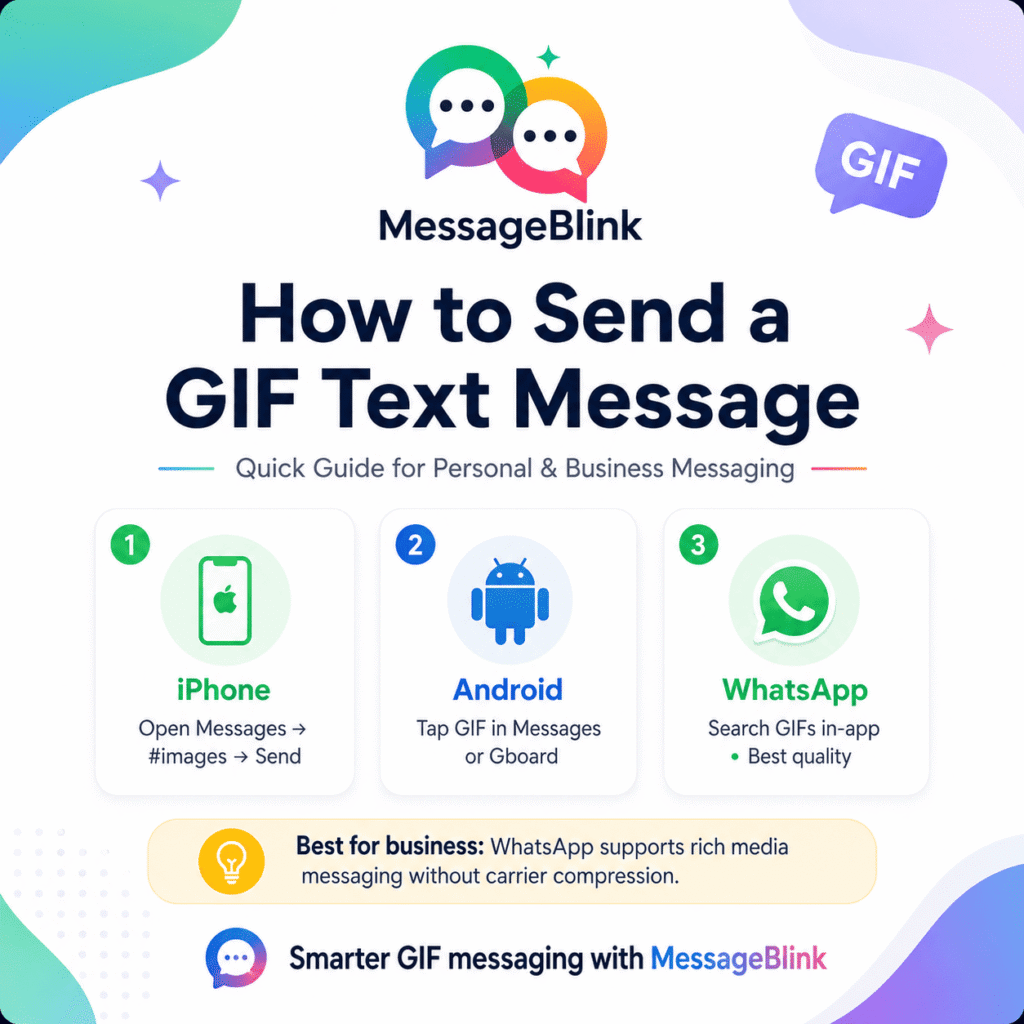
Sending a GIF from an iPhone Text (iMessage)
Apple’s iMessage has a built-in GIF search via its #images feature, which is integrated right into the keyboard.
Step 1: Open Messages App
Open Messages and open an existing conversation, or tap on the compose button to start a new one.
Step 2: Open the GIF library.
Tap the App Store icon (the little “A” button) to the left of the text input field. It reveals the App Drawer under the keyboard.
Step 3: Look for the #images Button
Find the #images icon (magnifying glass with hashtag) on the bottom row of the App Drawer. Tap that.
Can’t view #images? In the App Drawer swipe left and hit the three dot menu. Tap Edit, find #images and tap the green plus icon to add it.
Step 4: Search & Choose
You can find a specific GIF using the search bar or browse the trending ones. Tap your chosen GIF and it will drop into the text box.
Step 5: Hit Send
Hit the blue Send arrow. The recipient’s device will then play the GIF text automatically.
Note: If you’re sending to an Android user, iMessage automatically switches to MMS – the GIF might be compressed.
How to Share a GIF Android Text
Most Android devices will send GIFs with the default Google Messages app, which is powered by Tenor for GIF search.
Using Google Messages (Default)
- Open the Messages app on your Android device.
- Open a conversation or start a new conversation.
- Click on the emoji / smiley face icon on the text input bar.
- Tap GIF at the bottom of the emoji panel.
- Look through featured GIFs or use the search bar to find a GIF.
- Tap the GIF you want to insert it into the message field.
- Click Send.
Using Gboard (Third-Party Keyboard)
If you’re using Gboard as your keyboard:
- Tap the emoji icon in the bottom left or right corner.
- From the bottom menu, choose the GIF tab.
- Browse or search and tap to insert.
- Send it in your messaging app.
Samsung Galaxy and Google Pixel devices have built-in GIF access in their native messaging apps, so setup is not necessary.
How to Send a GIF text on WhatsApp (Android and iOS)
WhatsApp has its own GIF search engine (by Tenor) integrated into the app. No MMS required—GIFs send over data.
On Android:
- Open WhatsApp and open a chat.
- Select the emoji face icon in the text box.
- Tap GIF at the bottom of the emoji keyboard.
- You can browse through GIFs or use the magnifying glass icon to search.
- Tap the GIF you want to view. A preview appears.
- Add a caption if you want. Tap the Send arrow.
On iOS:
- Launch WhatsApp on your iPhone.
- Tap the + icon to the left of the text area.
- Choose Photo & Video Library.
- Tap the GIF search icon in the bottom left corner.
- Browse or search Tenor’s library.
- Tap your GIF text, then tap Send.
Pro tip: WhatsApp also allows you to turn short videos (under 6 seconds) into GIFs before sending. Simply tap on your gallery video, select GIF mode and send.
How to Send a GIF via a Third-Party App (GIPHY)
If you’re using the GIPHY app:
- Open GIPHY and tap your GIF text.
- Tap the Share icon.
- Pick the messaging app you prefer (WhatsApp, iMessage, Android Messages, etc.).
- Choose the recipient.
- Tap Send.
It works on almost all messaging platforms and allows you to tap into GIPHY’s vast library of content beyond the default keyboard search.
GIF File Size: Why You Should Care & What the Limits Are
| Platform | GIF Support | Max Size | Notes |
|---|---|---|---|
| iMessage (iOS to iOS) | ✔ Native animated GIF | Up to 100 MB | Compressed automatically if too large |
| Android Messages (MMS) | ✔ via MMS | ~1–2 MB | Carrier-dependent; may be compressed |
| ✔ Native in-app | 16 MB | Best quality, no carrier compression | |
| Standard SMS | ✘ Not supported | N/A | Converted to MMS or shown as a static image |
WhatsApp always provides the best GIF experience for business messaging – no carrier compression, no surprises in file size, and guaranteed animation playback for the recipient.
Why GIF Texting Works for Business
The transition from plain text to rich media messaging isn’t a trend — it’s a fundamental shift in how customers expect to interact with brands.
Rich advertisement mediums like GIFs and videos get 75% more clicks than plain text messages. When customers get a GIF that shows off a product feature or celebrates a milestone in a visual way, the message is memorable.
WhatsApp boasts an average open rate of 97% across all message types and average conversion rates of 15–25% on broadcast campaigns. Add a GIF to that mix and you exponentially increase the chances that the message gets remembered – not just read.
Over 65% of businesses using the WhatsApp Business API are already sending multimedia messages, indicating a clear shift from text-only communication.
Here’s what businesses are doing with GIFs specifically:
1. Product Demos and Feature Highlights
Three paragraphs can’t explain a product better than a 3-second GIF can. Send it when a prospect is looking at options and you have made it easier for them.
2. Customer Support and Onboarding
Support teams use GIFs to guide customers through step-by-step processes—”tap “here, then “here”—reducing support tickets and back and forth.
3. Celebrating Milestones and Events
Send a customized GIF to celebrate a client anniversary, welcome a new customer, or confirm a booking. It adds a touch of human warmth to an otherwise transactional message.
4. Re-engagement Campaigns
A re-engagement message spearheaded by a GIF stands out in a crowded inbox — or in this case, a busy WhatsApp thread. Use it to re-engage dormant leads, or remind customers of their abandoned carts.
5. Event Invites and Countdown Sequences
Animated GIFs displaying a countdown timer or an event teaser can help boost RSVP rates for webinars, product launches, and promotions.
Platforms That Support GIF Business Messaging
| Platform | GIF Business Messaging | API Available | Best For |
|---|---|---|---|
| WhatsApp Business | ✔ Full support | ✔ Yes | B2C, support, re-engagement |
| iMessage for Business | ✔ Full support | Limited | iOS-only audiences |
| SMS (via MMS) | ⚠️ Partial | ✔ Yes | Mass campaigns (quality variable) |
| Facebook Messenger | ✔ Full support | ✔ Yes | Social-first brands |
| RCS (Android) | ✔ Full support | Growing | Android-native rich messaging |
The easiest way to get GIF-powered business messaging for Salesforce users is through WhatsApp Business API, which natively supports rich media and includes API-level controls for message delivery, automation, and CRM sync.
Common Fixes: Why Your GIF Won’t Send
| Problem | Likely Cause | Fix |
|---|---|---|
| GIF sends as still images. | MMS not supported or animated display not supported on recipient device | For guaranteed animation use WhatsApp or iMessage |
| #images missing on iPhone | Feature not enabled in App Drawer | Tap “•••” → Edit → Add #images |
| GIF too big to send | MMS carrier size limit | Compress GIF or use WhatsApp (16 MB max) |
| GIF won’t load for the recipient. | Poor data connection on their side | Nothing you can do—it will load when signal improves |
| GIF option not visible on Android | Outdated messaging app | Get the latest version of Google Messages |
| WhatsApp GIF search is blank | No internet connection | Connect to Wi-Fi or cellular data |
MessageBlink: Smarter Messaging in Salesforce using WhatsApp
If you’re a Salesforce user and you want to inject GIF-enabled, rich media messaging into your customer workflows natively inside Salesforce, then MessageBlink is exactly what you need.
MessageBlink lets you link your WhatsApp Business account directly to Salesforce so your team can send rich media messages (GIFs, images, and documents), automate message sequences using Salesforce Flow, and track every conversation against CRM records—all without leaving the platform.
No third-party tabs. No copy-pasting. Rich, contextual WhatsApp messaging powered by your Salesforce data.