
Great customer service is built on fast, reliable communication. When your support agents can respond instantly to customer questions through Salesforce, you deliver experiences that not only solve problems but also build loyalty.
Message Blink is a Salesforce SMS and WhatsApp messaging app that lets you send texts directly from Salesforce Service Cloud. It allows your team to respond faster, keep customers informed, and manage all conversations in one place.
Why Enable SMS in Salesforce Service Cloud?
Service Cloud is already the powerhouse of customer service management in Salesforce. Adding SMS messaging makes it even more effective by giving customers the convenience of real-time text communication.
With Salesforce Service Cloud SMS, you can:
- Centralized conversations- View email, chat, and SMS in one unified inbox inside Salesforce, so agents never need to switch tabs.
- Instant replies- Respond to customer queries in seconds with preloaded templates and shortcuts that reduce response time.
- Each text conversation is linked to the contact or case record, letting support see order details, previous conversations, and related activities in one place.
This Salesforce SMS integration keeps your support workflow consistent while offering customers the convenience of real-time texting.
How Message Blink Makes Service Cloud Messaging Easy?
1. Keep Everything in One Place
With Message Blink, SMS is integrated into Salesforce. Agents can send and receive texts from Cases, Contacts, Leads, or Accounts without leaving Service Cloud. This helps teams manage high message volumes efficiently.
2. Respond Faster
Agents can send SMS from any Salesforce record having a phone/mobile field. Features like quick replies, reusable templates, and scheduled texts make it easy to respond immediately helping improve response times and customer satisfaction.
3. Continue Conversations Without Interruptions
Sometimes a customer starts a conversation in one channel but wants to continue it in another. With Message Blink, agents can move conversations between SMS and WhatsApp while keeping the full conversation history intact, ensuring a smooth experience for customers.
4. Automate Routine Messages
Message Blink lets you automate common tasks such as:
- Appointment reminders and confirmations
- Order or delivery updates
- Follow-ups and surveys
- Frequently asked questions
Automation saves time for agents and ensures customers get consistent, timely communication.
5. Personalize Every Message
Message Blink supports merge fields such as customer name, order number, or appointment time. This makes even bulk SMS messages feel personal and relevant.
6. Stay Compliant with Opt-In Management
Message Blink helps you manage customer permissions and stay compliant. Customers can easily opt in, receive confirmation, and opt out at any time using keywords like STOP. This keeps your messaging legal and trustworthy. See our TCPA compliance checklist.
Step-by-Step: How to Send SMS from Service Cloud Using Message Blink
- Install “Message Blink” from Salesforce Appexchange.
- Choose your country where you want to send sms,
- Drag the Message Blink SMS Component to Case/Contact/Lead page layouts. Check this Post- Installation Guide
- Open a record, view conversation history, and send a new message. See this video for 2-Way SMS Chat in Salesforce
- Use pre-defined templates or schedule SMS if needed
- Send bulk SMS from Salesforce using List Views, Reports, or Campaigns
- Track message delivery, open rates, and performance from the Message Blink Dashboard & Analytics
Pro Tip- Use Salesforce Flows or Process Builder to trigger messages automatically after updates (like status changes or feedback collection). Learn more in our Salesforce Flows SMS guide.
Common Ways Agents Use Message Blink in Service Cloud
Collect Feedback
Send a short text survey after a purchase or service interaction to gather customer feedback. Use Salesforce Flows to trigger automatic follow-up messages based on responses.

Answer Common Questions
Set up auto-replies for frequently asked questions like business hours, return policies, or product information. Agents can focus on more complex issues while customers get quick answers.

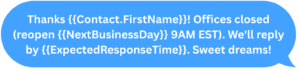
After-Hours Support
Let customers know when to expect a response outside of business hours. Automated replies provide peace of mind and set clear expectations.
Appointment Reminders
Send reminders for appointments or events. Customers can confirm, reschedule, or cancel directly via SMS, reducing missed appointments.

Order and Delivery Updates
Keep customers informed with real-time updates about their orders, shipments, or delivery times, reducing unnecessary support calls.

Why Choose Message Blink for Service Cloud SMS?
Message Blink is designed to work natively in Salesforce. It makes sending and managing texts simple and efficient. With Message Blink, you can:
- Send messages directly from Salesforce
- Automate routine texts and reminders using Salesforce Flows
- Personalize each message for better customer engagement
- Keep full conversation history linked to the right records
- Manage opt-ins and compliance easily
It’s the easiest way to send SMS from Salesforce Service Cloud and provide fast, reliable, and professional support.
Conclusion
Text messaging is a critical channel for customer service. By using Message Blink in Salesforce Service Cloud, your team can respond faster, automate routine tasks, and provide a personalized experience all from within Salesforce.
Start sending SMS from Service Cloud today and see how Message Blink can make your customer support faster, easier, and more effective.