
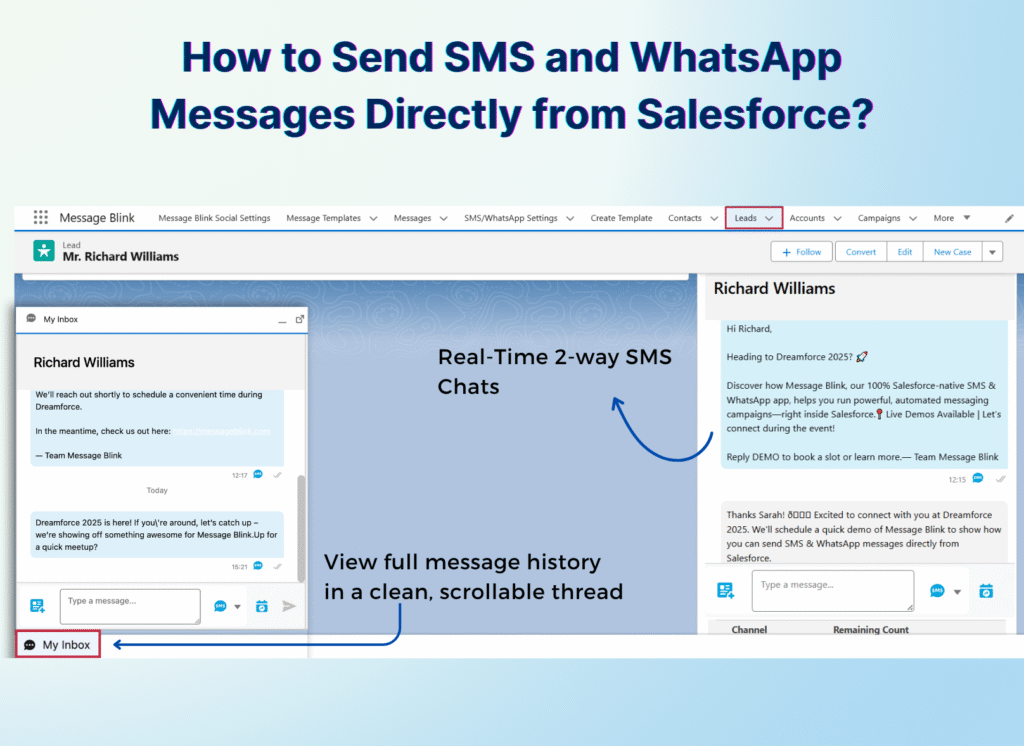
Salesforce users spend too much time switching between tools just to message leads. By connecting WhatsApp and SMS directly inside Salesforce, you can manage all your customer conversations in one place saving time, improving engagement, and keeping your CRM data synced.
With Message Blink, a 100% native Salesforce SMS and WhatsApp messaging app, you can send and automate conversations directly from your Salesforce CRM.
If you’ve ever wondered how to send SMS from Salesforce or how to connect WhatsApp to Salesforce, this quick guide will walk you through everything — from enabling messaging access to sending your first text message.
Step 1 – Enable Messaging Access in Salesforce
Before using any Salesforce SMS integration, check that your org allows messaging features:
-
Go to Setup › Messaging › Permissions.
-
Enable SMS and WhatsApp for your profile.
-
Make sure your Leads and Contacts have valid phone numbers.
This step ensures your system is ready to send SMS from Salesforce without errors.
Step 2 – Choose an Integration App
You can integrate messaging using Twilio, Marketing Cloud, or a 100% native Salesforce app like Message Blink.
| App | Setup Time | Native to Salesforce | WhatsApp Support |
|---|---|---|---|
| Twilio + custom code | Long | ❌ | ✅ |
| Marketing Cloud Mobile Connect | Medium | ✅ | ❌ |
| Message Blink (Recommended) | 2 minutes | ✅ 100% native | ✅ WhatsApp & SMS |
If you want a plug-and-play experience to send SMS from Salesforce or manage Salesforce WhatsApp messaging, Message Blink is the fastest and most reliable option.
Step 3 – Connect Message Blink to Salesforce
Connecting Message Blink takes just a few clicks:
-
Install Message Blink from the Salesforce AppExchange.
-
Log in with your Salesforce admin credentials.
-
Authorize access — your Salesforce objects and fields sync automatically.
Now your team can start sending SMS and WhatsApp messages directly from Salesforce.
Step 4 – Send Your First SMS
-
Open a Lead or Contact record.
-
Click the Message Blink tab.
-
Choose SMS or WhatsApp, write your message, and click Send.
Your conversation is instantly logged in the activity timeline making it easy to track every interaction without leaving Salesforce.
Step 5 – Automate or Send Salesforce Bulk SMS
Use Salesforce Flow With Message Blink , you can:
-
Send an SMS when a new lead is created.
-
Trigger WhatsApp follow-ups based on lead status.
-
Launch salesforce mass texting campaigns right from list views.
Automating Salesforce text messaging ensures faster communication and better engagement – all without leaving Salesforce.
Get Started
Ready to send SMS from Salesforce and connect with your customers faster?
👉 Start a Free Trial of Message Blink
Send personalized SMS and WhatsApp messages directly from Salesforce in minutes — no code, no hassle.