Whether you want to send SMS from Salesforce, build automated SMS journeys, or personalize texts for marketing, service, or sales teams- templates help you send consistent and accurate messages at scale.
Follow the guide below to create an SMS template using your Salesforce SMS app, Message Blink.
- Go to Message Blink from App Launcher- Your Salesforce SMS App
- Navigate to “Create template”

-
- Now Enter “Template Name”, Select Your “Channel” (SMS, WhatsApp), Select “Object” (Lead, contact, account etc..) , Select “Language” (English, French)
- Type the “SMS” you want to send using “Salesforce Merge fields” like {{!Lead.FirstName}} or {{!Case.CaseNumber}}
- Use the “preview panel” on the right to see how your message will look
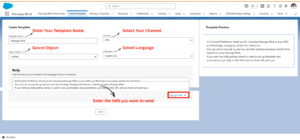
- Then click on “Save”

- All saved templates are stored in the Message Templates tab.Here you can edit, clone, and manage templates.


